Upcoming feature: Starboard
Time for another update! In this post, we will take a look at the new v5 version and the things we can expect from it. So, without further ado, let's get started!
Preliminary information
The v5 update focuses on slash commands. Prefixed commands will therefore be removed with the introduction of a dashboard on the bot's website.
AmpersandBot v5 has been rewritten from the ground up in C#, which means that the bot will be much faster and more stable.
How to configure a Starboard?
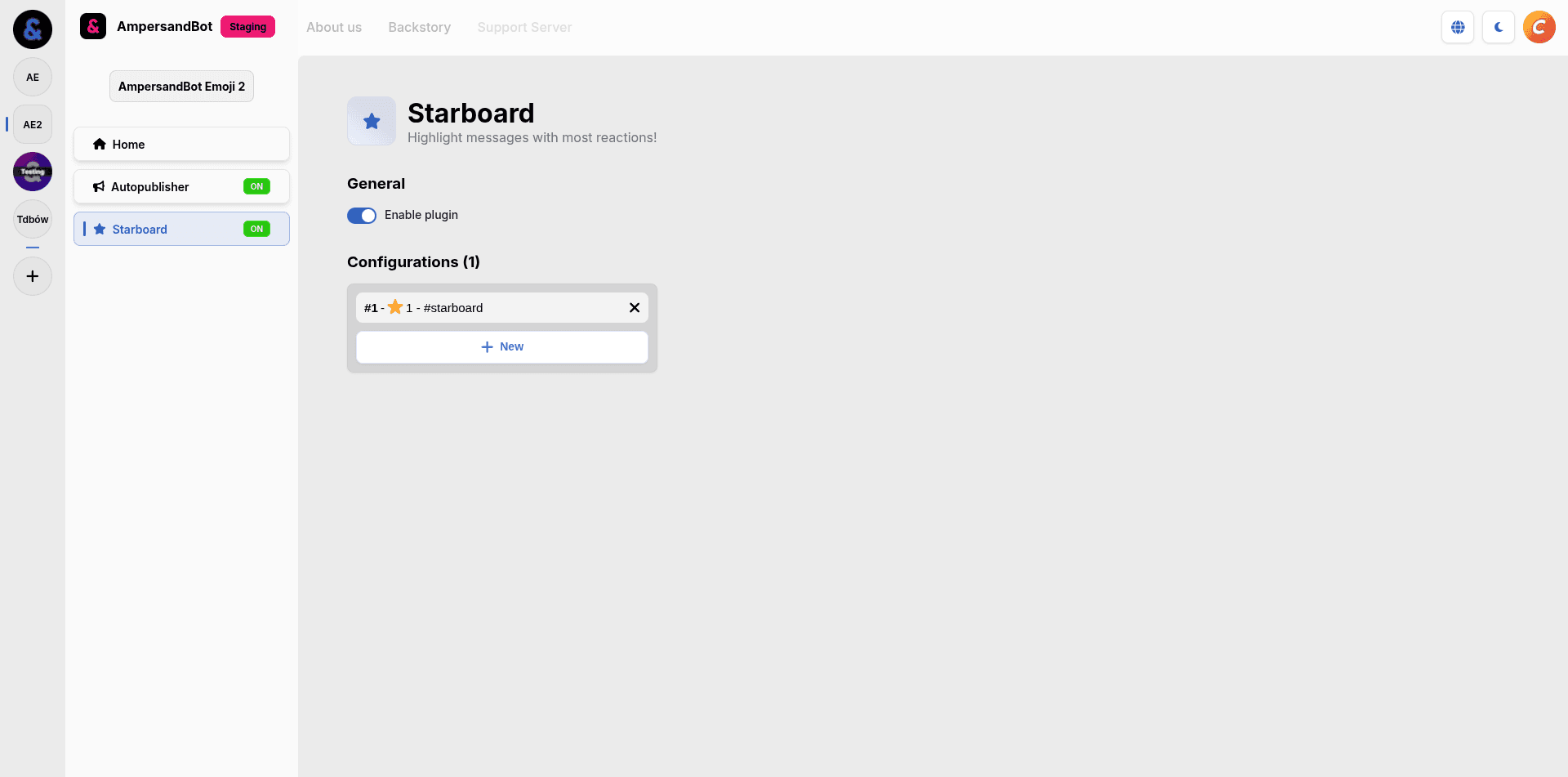
Open the dashboard. Log in and then select the server you want to configure. As the final step we select the Starboard tab.
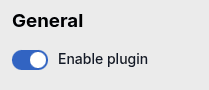
First, we enable Starboard.
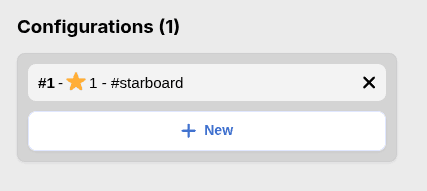
Then we add a new configuration.
Starboard allows us to customize how the feature is working. All the features are outlined below.
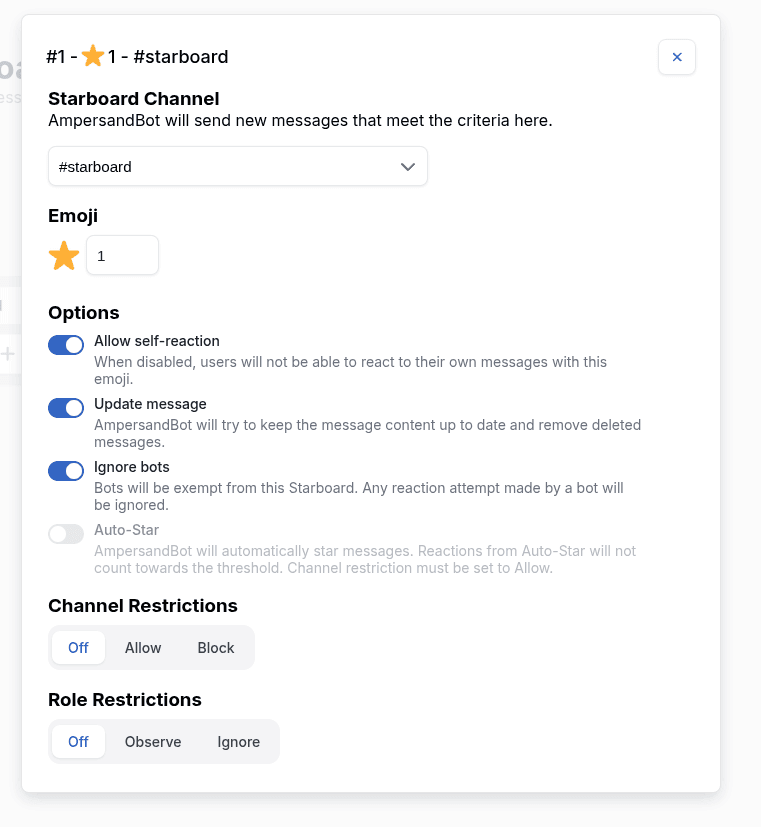
Configuration options
Starboard Channel- new messages will be sent to this channel when they meet the criteria set belowEmoji- allows to set the emoji to detect and how many reactions of this emoji the message needs to be sent to the channel selected aboceOptions- switches that allow to customize how Starboard works, more information below
Options
Allow self-reaction- allows the user to react to their own messages; their reaction will be removed when this option is disabledUpdate message- when this option is enabled, AmpersandBot will try to update the messages added to a Starboard and remove the ones that have been deletedIgnore bots- self-explanatory; when the option is enabled, bot reactions will not be counted toward the reaction thresholdAuto-Star- AmpersandBot will automatically add the selected reaction to new messages; for this option to work, the channel restriction mode must be set to Observe, which has been explained below
Channel Restrictions- the behavior of the feature will vary depending on the channel on which it was called
Channel restrictions
Off- the feature works on every channelObserve- the feature works only on selected channelsIgnore- the feature works on every channel, except for the selected ones
Role Restrictions- the same as Channel Restrictions, but for roles
Role Restrictions
Off- works for everyone, regardless of their rolesObserve- works only for users with the selected rolesIgnore- works for everyone, except for users with the selected roles
Important
If the message is from an age-restricted channel, the message will be sent to the Starboard only when its channel is also age-restricted.
Final words
Thanks for reading this post and using our bot! If you have any questions, you can ask them on our support server (opens in a new tab).
Have a great day ~ The AmpersandBot Team